If a caller asks for a specific person or department, BelBuddy takes a message for that person. They receive it straight away by email and, if they use the app, as a notification on their phone.
Open Staff
Log in at app.belbuddy.eu, choose Settings and then Manage staff.
Add a team member
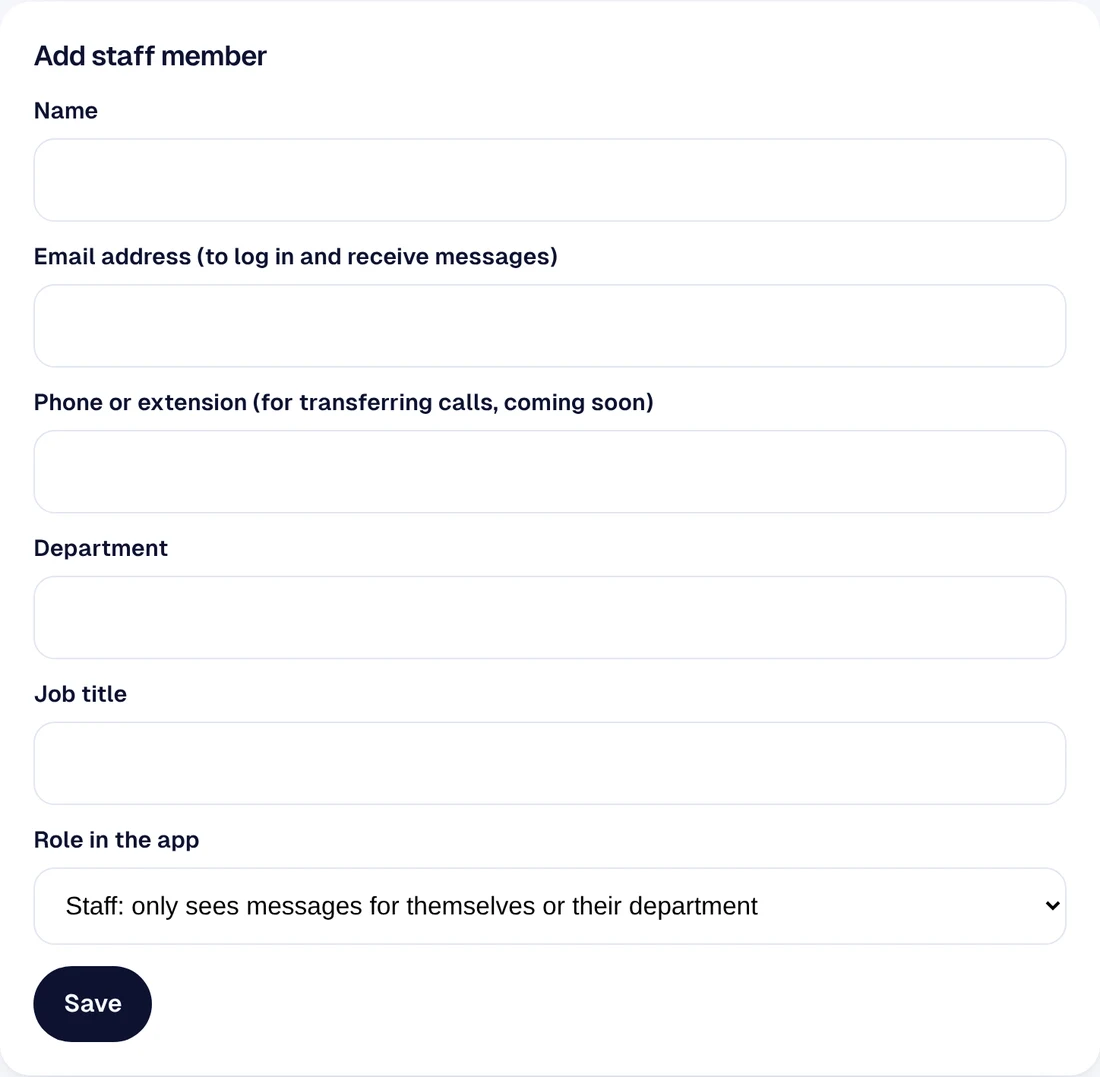
Enter their name, email address, department and job title. Choose the role: a Team member only sees messages for themselves or their own department; an Owner sees everything and manages the settings. Choose Save.
Done
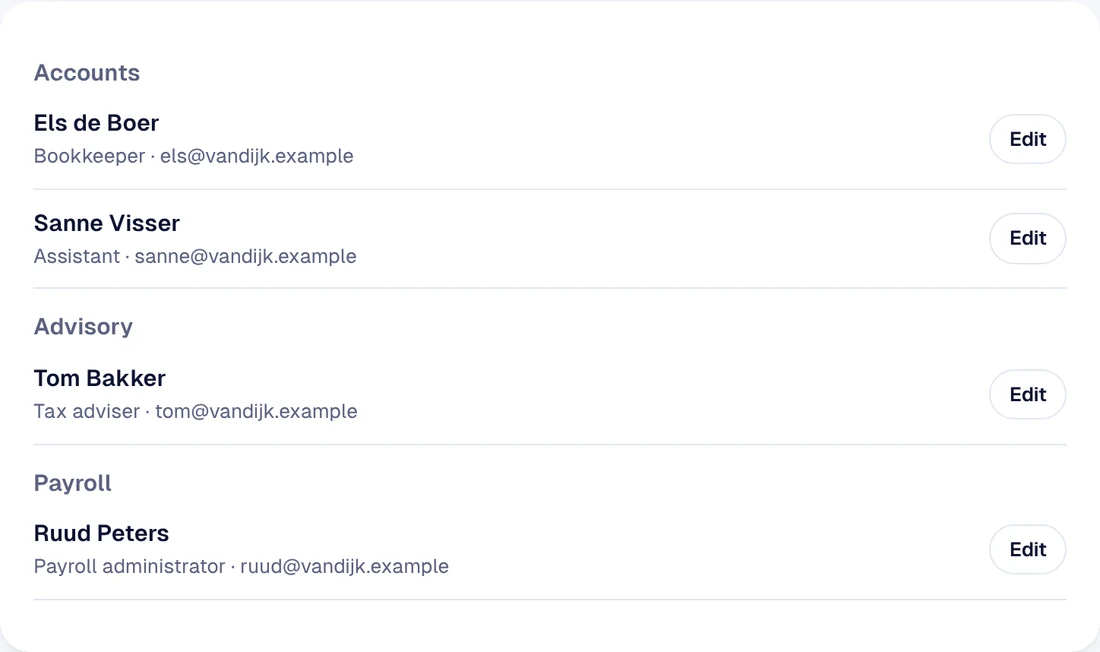
Your staff are listed by department. They log in themselves with their email address, using a code, Microsoft or Google.
Staff from Microsoft 365
If your organisation uses Microsoft 365, you can have your staff imported. Under Manage staff, choose Import staff from Microsoft 365. An administrator of your Microsoft 365 signs in and grants permission once. BelBuddy then updates the list every day; people who leave are automatically marked as no longer employed.
Appointments per team member
In the Team plan, BelBuddy books appointments in the team member's Microsoft 365 calendar. First have your administrator connect the calendars under Appointments per staff member. Then choose Edit for each team member and tick Appointments via BelBuddy, with the services they provide.
Coming soon
Transferring calls to a colleague's extension.
Need a hand?
Email [email protected] or ask your question in the chat at the bottom right. We're happy to help, including with setup.