BelBuddy only schedules appointments at times that are genuinely free, within your opening hours. It can only access your calendar, not your email or files.
Open Settings on your computer
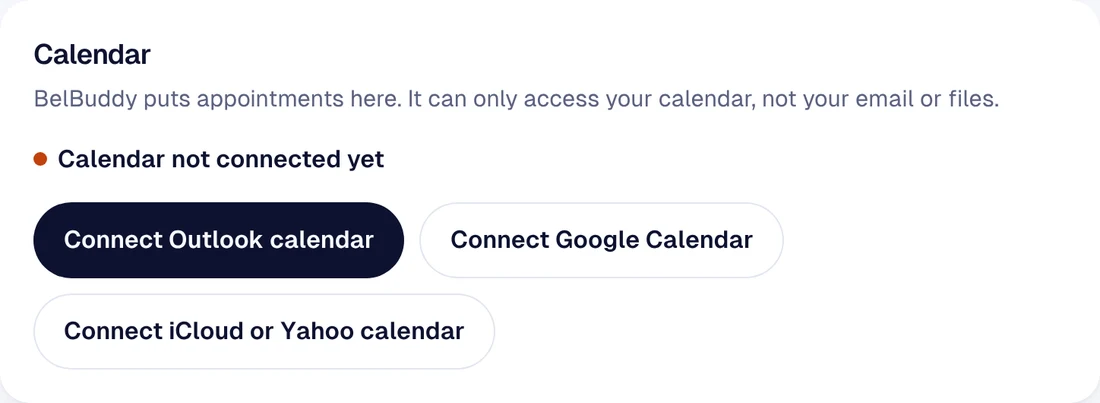
Log in at app.belbuddy.eu and choose Settings. Under Calendar you will find the buttons to connect.
Outlook or Microsoft 365
Choose Connect Outlook calendar, sign in with your Microsoft account and grant permission. You will automatically return to BelBuddy.
If you work in an organisation that uses Microsoft 365, your IT administrator may need to grant permission first. They will see this automatically when signing in.
Google Calendar
Choose Connect Google Calendar, sign in with your Google account and grant permission for your calendar.
iCloud or Yahoo
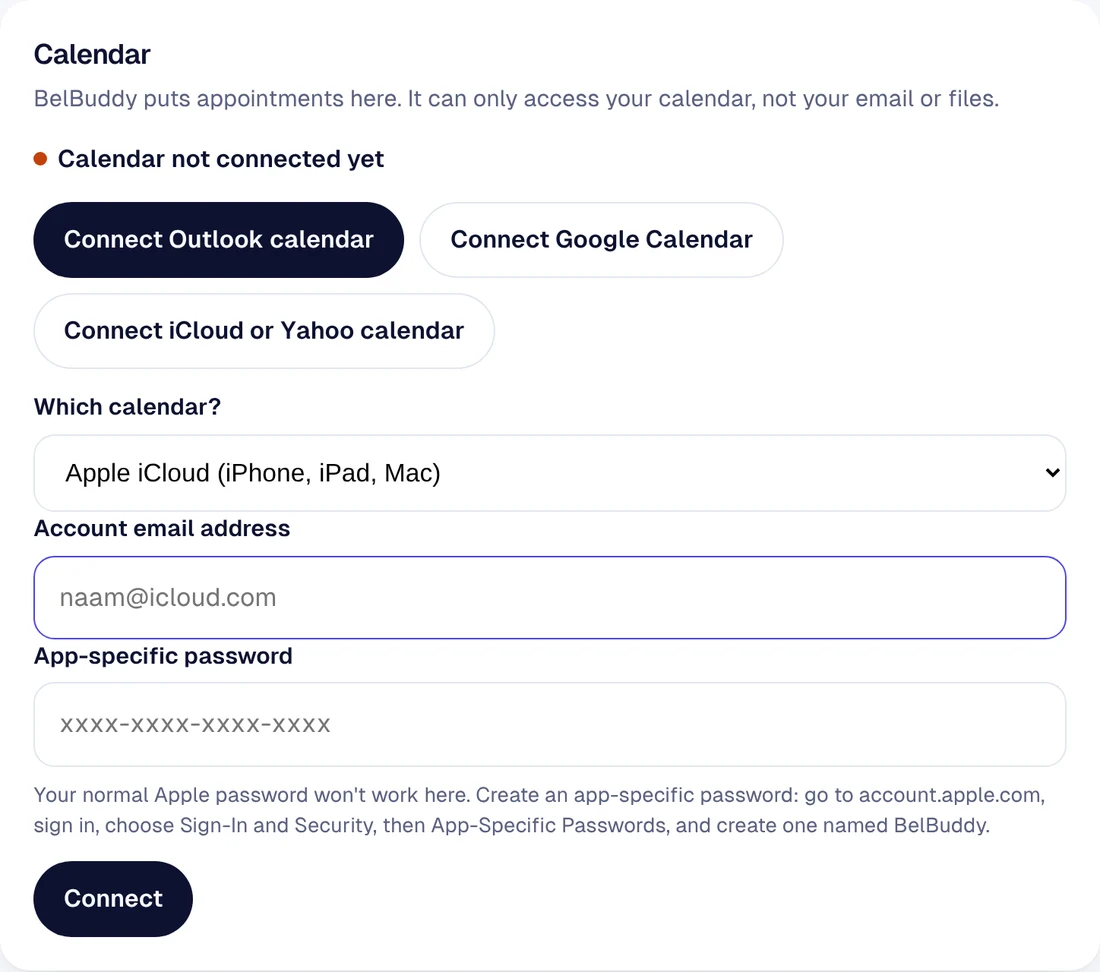
Choose Connect iCloud or Yahoo calendar, select which calendar, and enter the account's email address with an app-specific password. Your normal password will not work here.
For Apple, you create one at account.apple.com: sign in, choose Sign-In and Security, then App-Specific Passwords, and create one named BelBuddy.
Good to know
- You set how long an appointment lasts under Services. If left empty, it is 30 minutes.
- BelBuddy books nothing on closed days or outside your opening hours.
- You can disconnect at any time using the button under Calendar.
Need help?
Email [email protected] or ask your question in the chat at the bottom right. We are happy to help, including with the setup.